




Looking for an easy way to record your screen, gameplay, or tutorials? iTop Screen Recorder is a Windows-based tool designed to capture video, audio, and webcam simultaneously. It promises high-quality HD and 4K recording, simple editing tools, and a user-friendly interface. In this guide, we’ll explore what it offers, its pros and cons, safety concerns, and whether it’s worth trying in 2025.
What is iTop Screen Recorder?
iTop Screen Recorder is a software for Windows 7, 8, 10, and 11. It allows users to record their full screen, a selected region, or even a specific window. Gamers, educators, content creators, and business professionals use it for tutorials, lectures, gameplay, and presentations. Its interface is designed for beginners, making recording simple without needing advanced knowledge.
Who Should Use It?
- Gamers: Capture high-quality gameplay and commentary.
- Educators/Students: Record lessons, tutorials, or presentations.
- Content Creators: Make tutorials, reviews, or social media videos.
- Business Users: Capture meetings or webinars for training or documentation.
Key Features of iTop Screen Recorder
Screen Recording Options
You can record full screen, a custom region, or a single window. It also supports mobile screen mirroring for iPhone and Android devices, making it versatile for different recording needs.
Audio and Webcam Capture
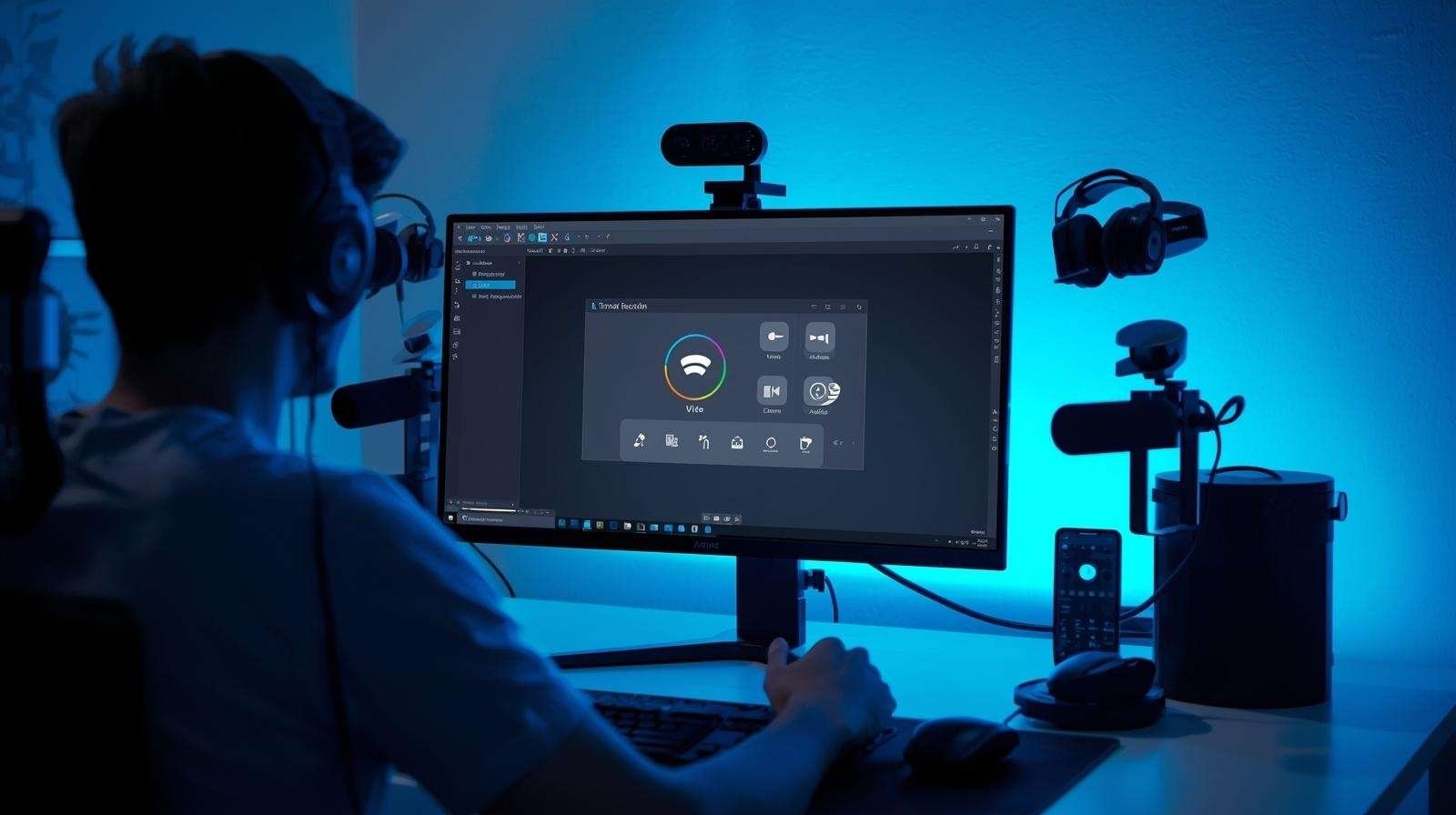
iTop allows recording system audio, microphone input, and webcam simultaneously. This is ideal for tutorials, gaming commentary, or online lessons where you want to show your face and voice.
Built-in Video Editor
After recording, you can trim, crop, merge, or add basic effects without using external software. The built-in editor simplifies workflow for short videos, quick tutorials, or social media content.
High-Resolution Export & Formats
You can record in 1080p or 4K, ensuring your videos look professional and are compatible with platforms like YouTube.
Game Mode & Hardware Acceleration
The Game Mode uses GPU acceleration (NVIDIA or AMD) to capture gameplay smoothly, minimizing lag or frame drops. You can also record the mic and webcam simultaneously for live commentary.
Extra Tools
iTop Screen Recorder includes screenshot capture, scrolling capture for long webpages, and annotation features. These tools are handy for tutorials, guides, or presentations.
How to Use iTop Screen Recorder
- Download and install the software on Windows.
- Choose recording area: full screen, region, window, or mirrored device.
- Enable system audio, mic, and webcam if needed.
- Set hotkeys for quick start/stop.
- Click REC to start recording, then stop when done.
- Edit with the built-in editor if required.
- Export in your preferred format and resolution.
Tips: Use 1080p or 4K for better quality, test the mic and webcam beforehand, and ensure GPU drivers are updated for smooth Game Mode recordings.
Pros & Cons
Pros
- Easy-to-use interface: Beginner-friendly and intuitive.
- Versatile recording: Supports multiple inputs and devices.
- Built-in editing: Trim, merge, and crop videos quickly.
- High-quality output: HD and 4K with multiple formats.
- Game Mode: Smooth gameplay capture with GPU acceleration.
Cons
- Mixed reports of crashes or antivirus warnings.
- Some users report glitches in fast-motion recordings.
- Paid Pro version needed for some features or watermark removal.
Is iTop Screen Recorder Safe?
User experiences are mixed. Some report smooth usage, while others note performance slowdowns or antivirus alerts. To stay safe:
- Scan the installer with an antivirus before installation.
- Monitor your PC for unusual activity after installation.
- Avoid bundled software or suspicious downloads.
For privacy-conscious users, open-source tools like OBS Studio may be a safer alternative.
Alternatives
If you want a free, trusted option, OBS Studio is widely recommended. It’s open-source, feature-rich, and supports high-quality recordings without hidden costs or software bundles.
Verdict
iTop Screen Recorder works well for casual users who need simple, high-quality recordings with basic editing. Gamers and content creators can benefit from its Game Mode and multi-input features. However, mixed safety reports and limited advanced editing make it less suitable for professionals who require full control or privacy assurances.
FAQs
Q1: Is iTop Screen Recorder free?
Yes, but some advanced features may require the Pro version.
Q2: Can I record the webcam and mic together?
Yes, it supports simultaneous screen, mic, and webcam recording.
Q3: Are the recordings high-quality?
Yes, up to 1080p or 4K, depending on settings.